
KS-BOS - Software for cameras in vehicles
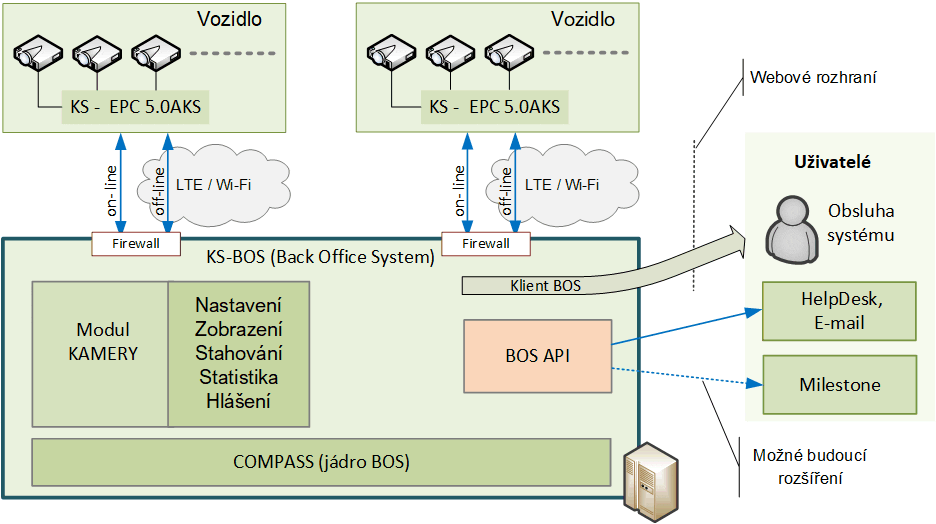
KS-BOS (Back Office System Camera System) is designed for monitoring and managing camera systems in emergency services vehicles or public transport. It is based on the COMPASS server core developed by Ing. Ivo Herman, CSc.
Contact us
Software for monitoring and managing cameras in vehicles – KS-BOS (Camera System Back Office System) is designed for monitoring and managing camera systems in emergency services or public transport vehicles. It is based on the COMPASS server core developed by Ing. Ivo Herman, CSc. It is designed to work with the EPC 5.0A KS control unit defined by the XML protocol (company interface covering the needs of emergency services or public transport). When used in public transport, it can also process data about the line, destination, driver and more, if this data is available.
It is a server-client structure where the client logs in via a web interface.
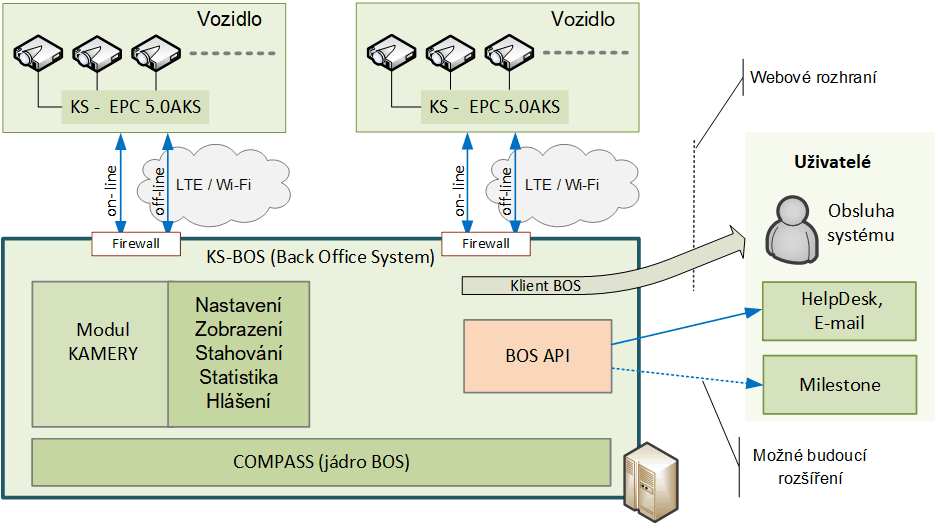
The basic principle of centralised camera system management.
SW BOS communicates with vehicles:
• Online communication: status of cameras and other components and their settings – vehicles send online information every 30 seconds (configuration value),
• Offline communication: reading camera recordings via Wi-Fi connection in depots or via LTE mobile operator.
The BOS software for reading recordings thus allows you to check the status of individual components, the system, the reading process and the control of reading. The software allows remote reading of recordings according to the customer's requirements – individual cameras or all cameras (even from multiple vehicles) within a specified time period (according to the settings in the project).
KS BOS – overview of functions
The following is a brief overview of the basic functions of the system as seen by the system operator.
User login and management
User login
Users log in using their name and password. Two-factor authentication can also be used as an additional security measure.
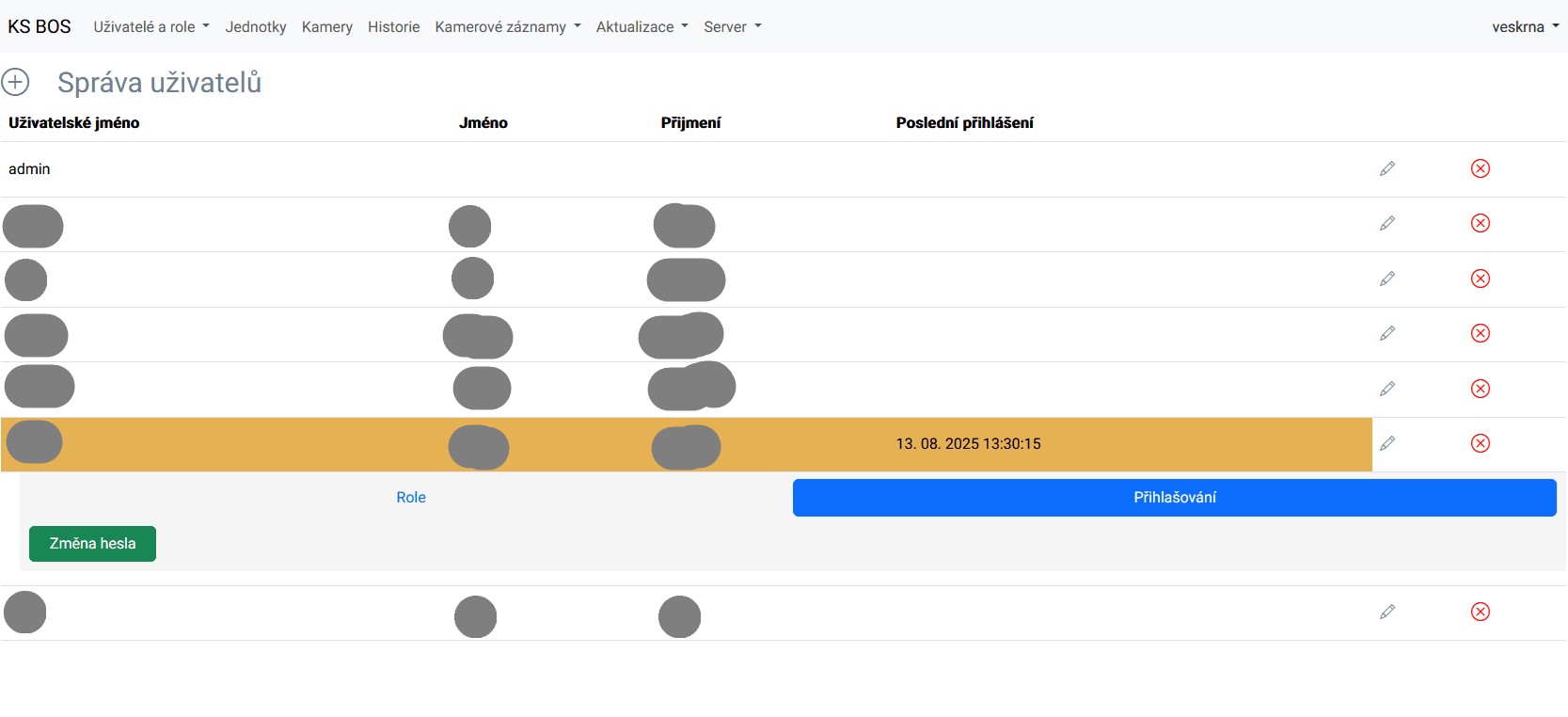
User management
User management – individual users can be assigned roles to restrict their access to specific information in the system or their ability to make changes.
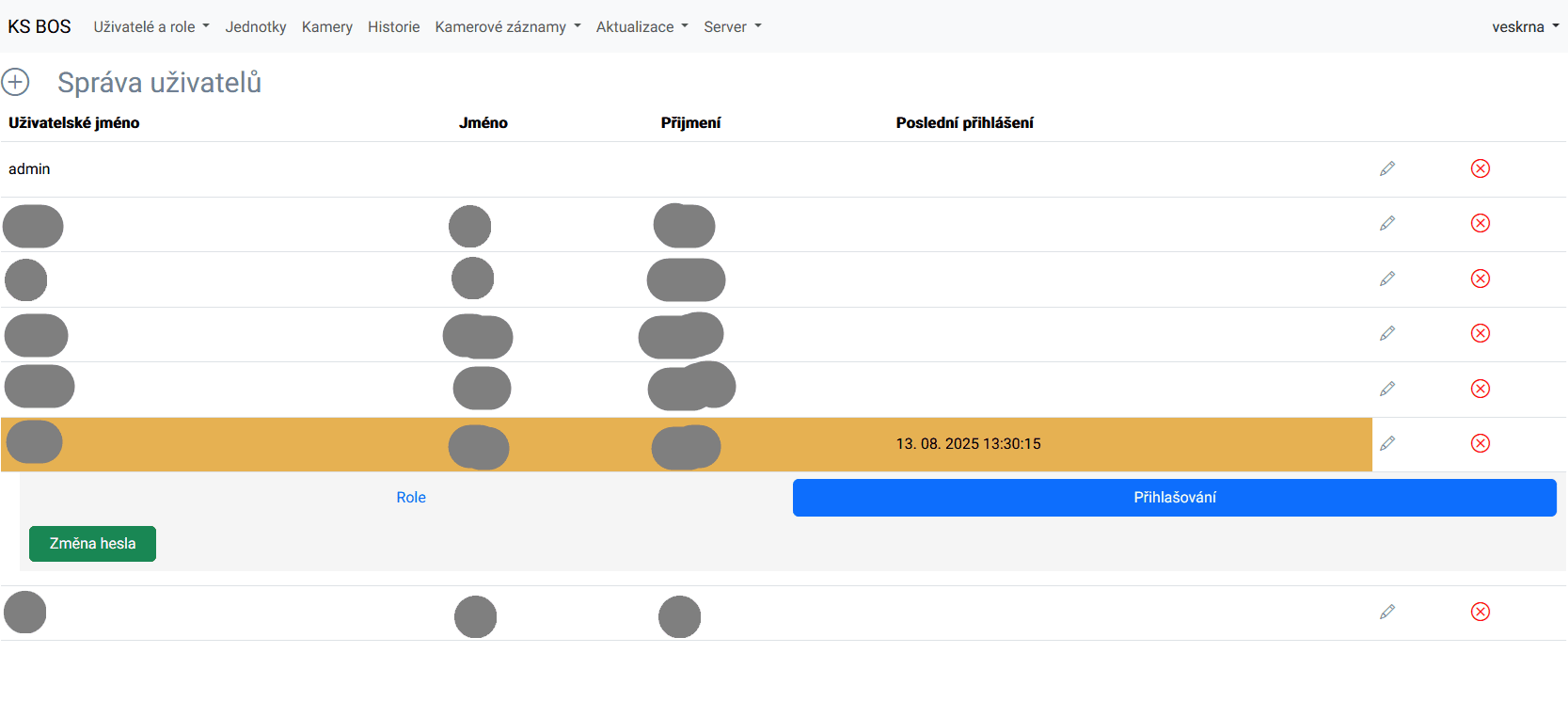
Sample "User Management" window.
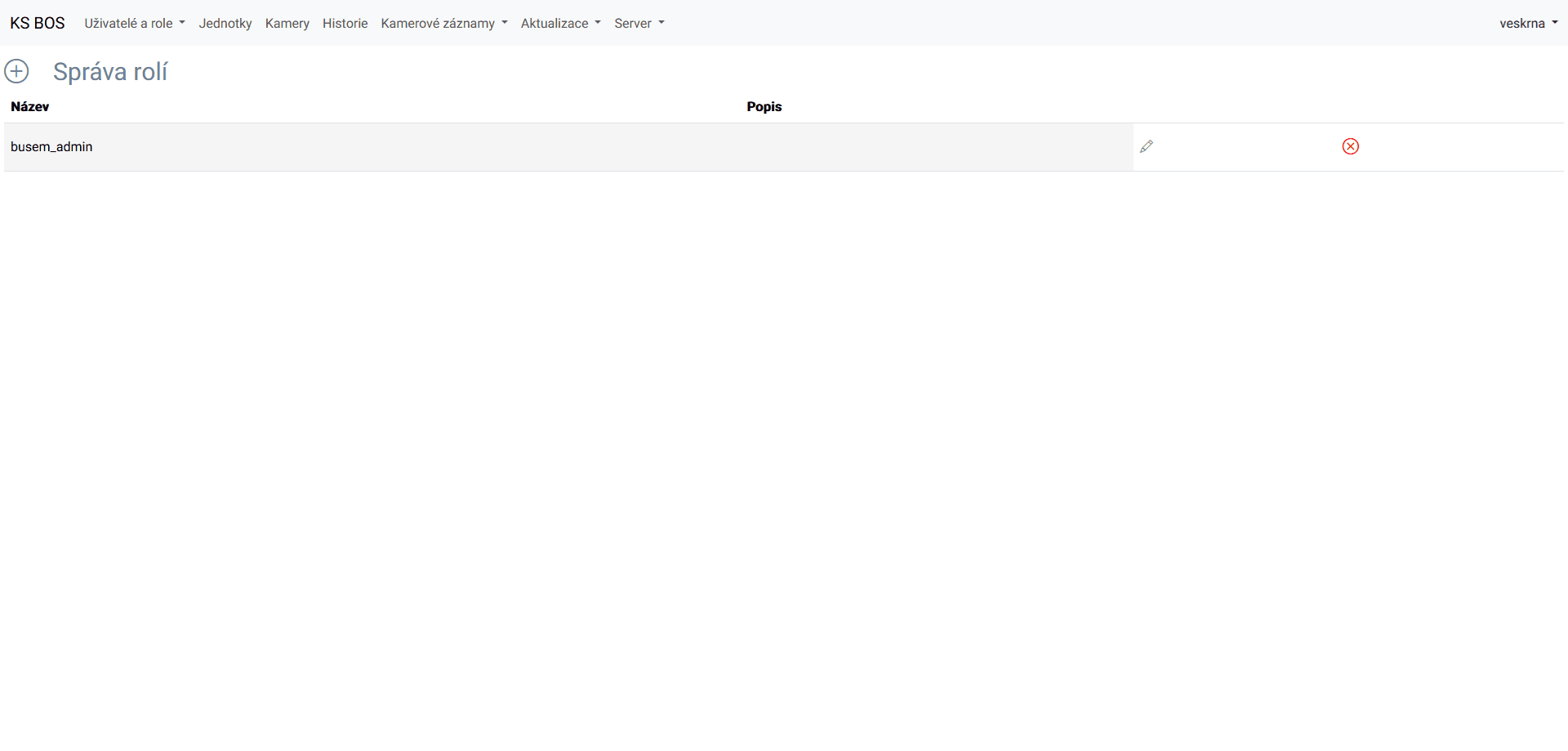
Role management
User role management – roles define a list of individual permissions (e.g. view list of units, delete unit, create video download record, etc.). Roles are then assigned to individual users by the system administrator.
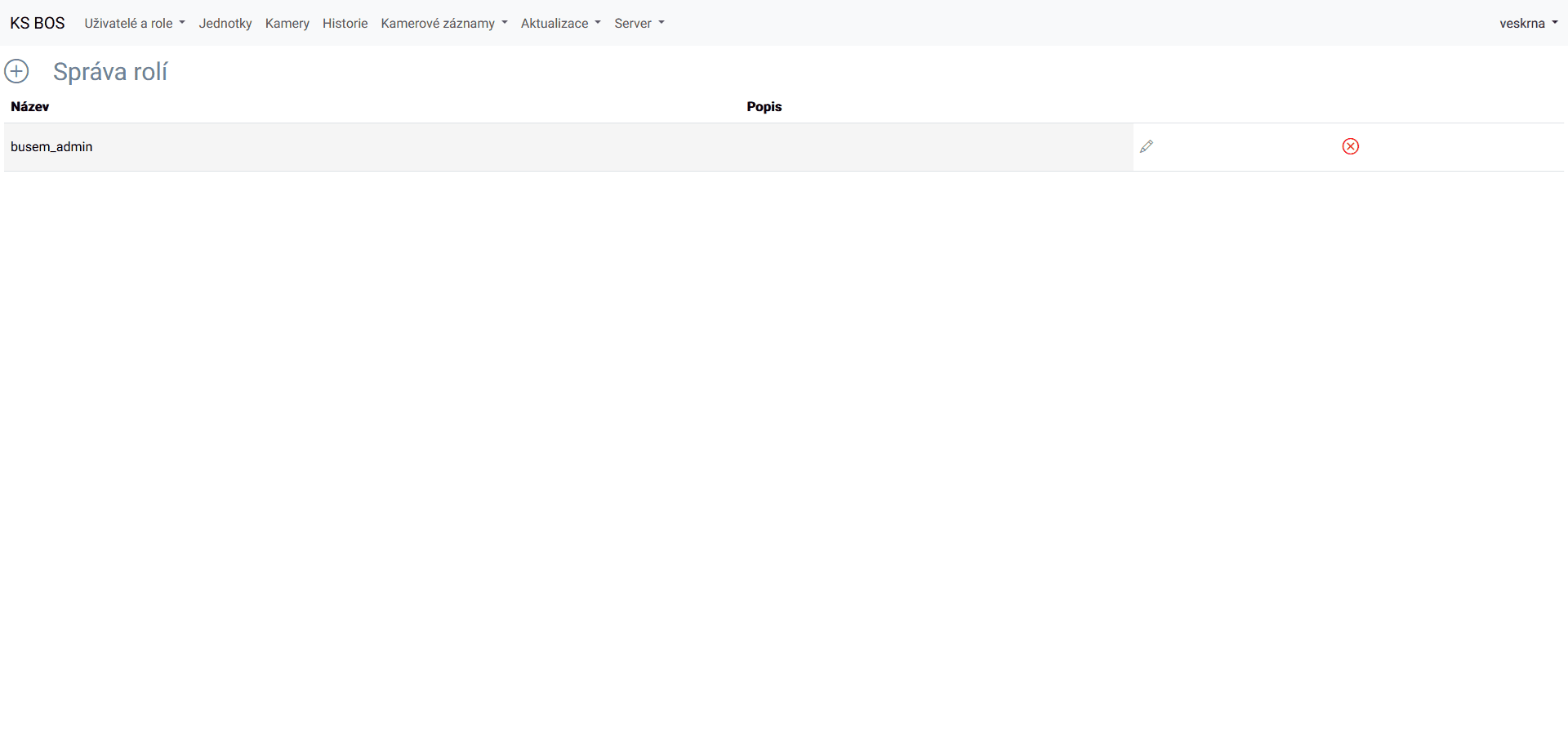
Example of the "Role Management" window.
Units – display of unit status and location
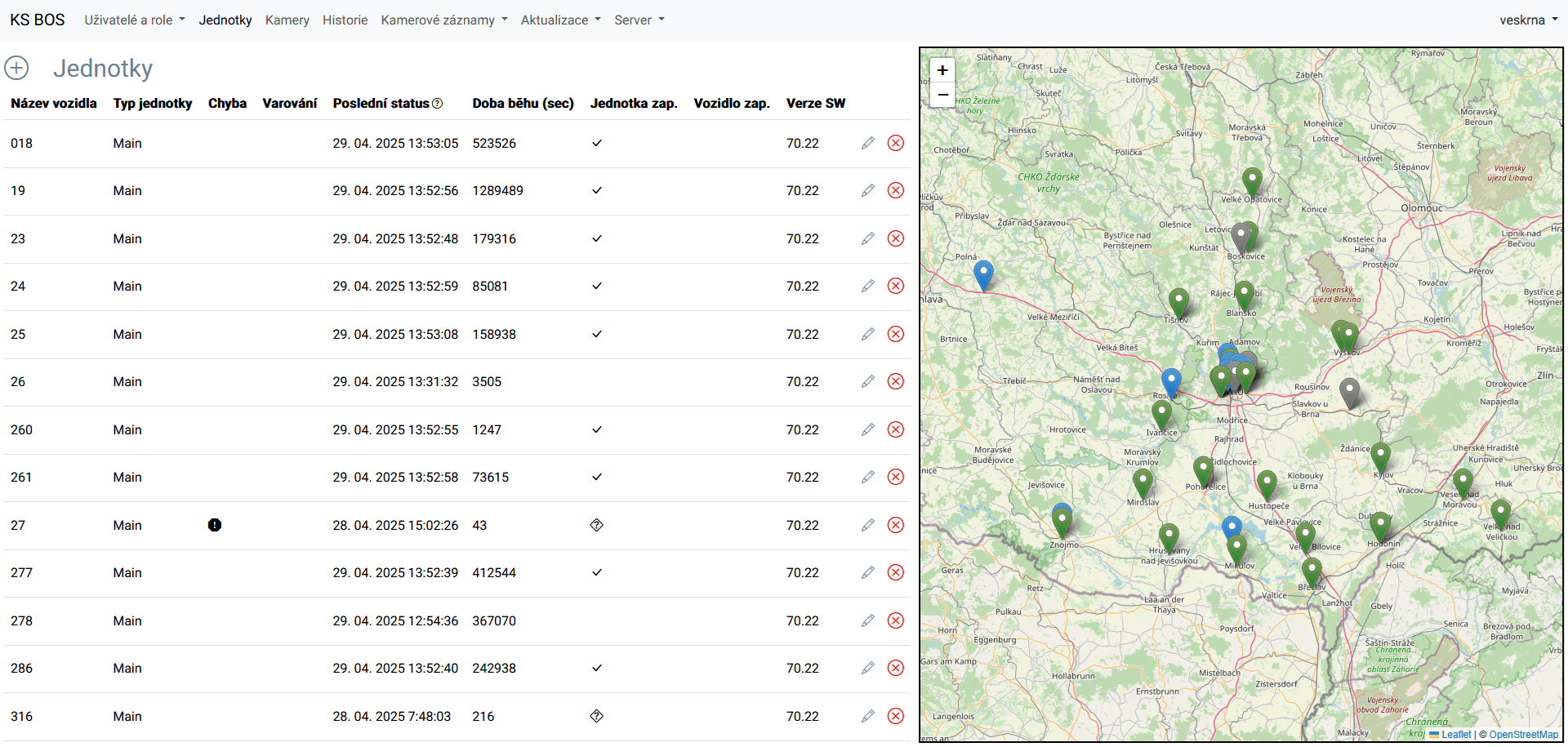
Unit overview – KS BOS allows you to view current information about the system in the vehicle unit, its location on the map, camera status, time of last communication, etc. during online communication.
Display of units above the map
When displayed above the map, vehicles are shown according to their current location or the location of the last communication.
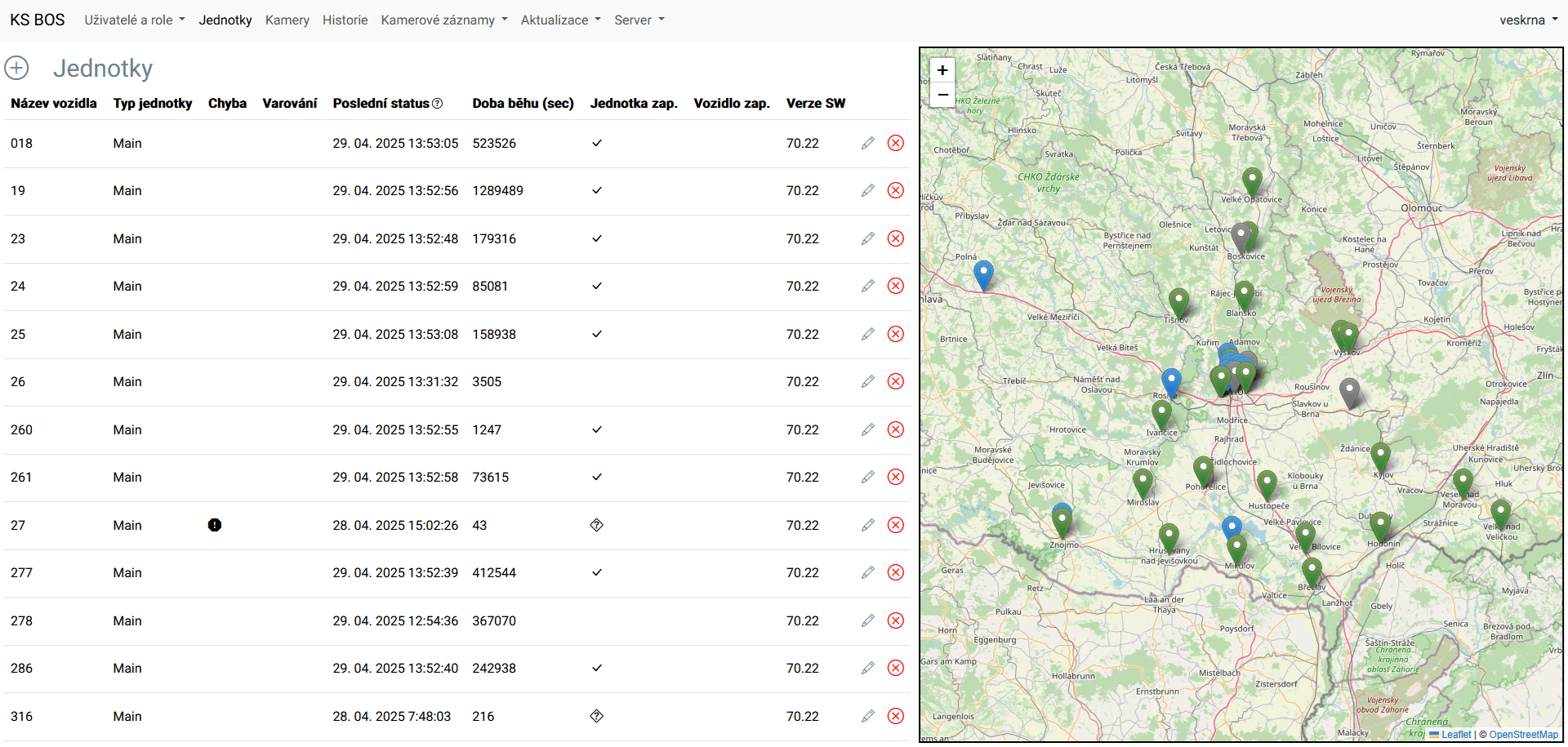
Example of unit location and status above the map.
Basic vehicle information
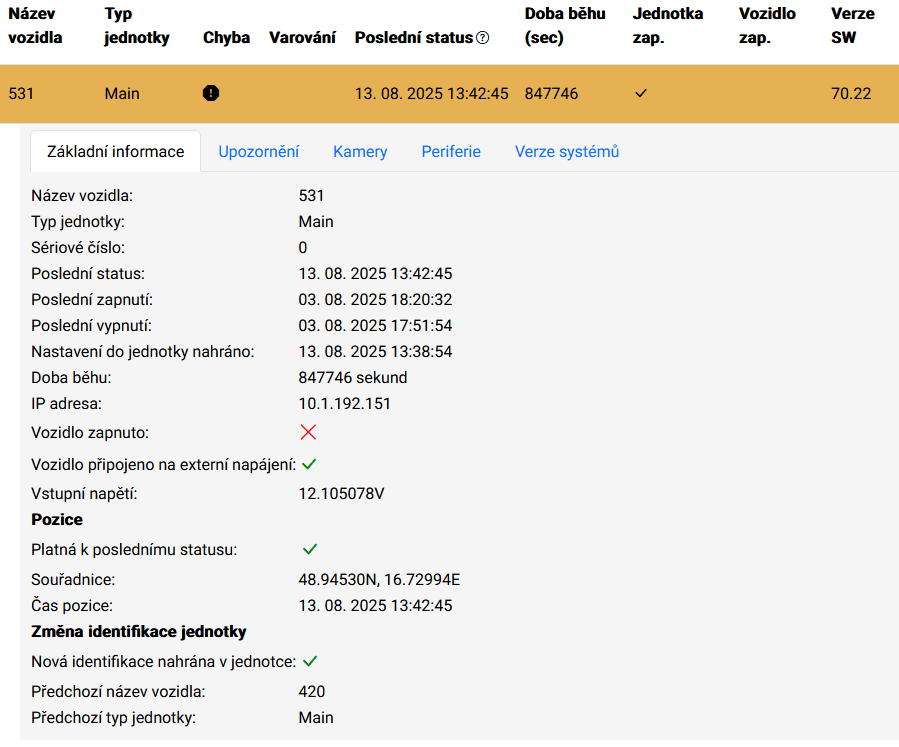
After clicking on a unit above the map, detailed information about the status of the camera system in the vehicle is displayed according to its individual parts – see "Basic information", error notifications, camera status, and possibly also system peripherals (e.g. status of controlled switches) and FW versions. These values are set within the given project.
Error notifications or warnings
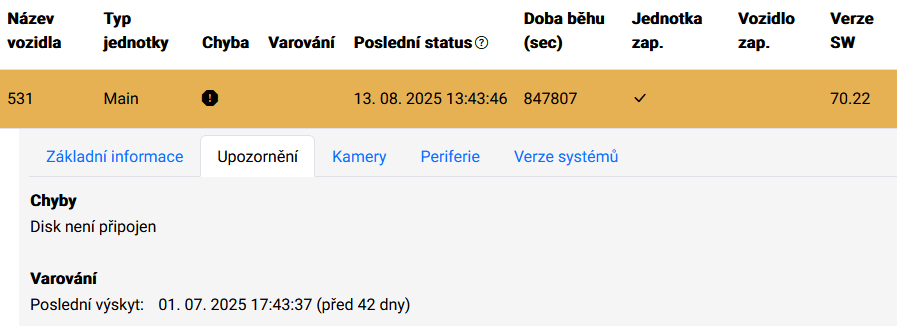
Unit errors – a list of errors and warnings (temporary non-standard conditions that occurred during operation but may not be errors – e.g. shutdown of part of the system by the operator, etc.) currently reported by the vehicle camera system (unit) is displayed automatically. If the unit does not report anything, the time of the last occurrence is displayed. A summary of all errors and warnings can be sent by e-mail to selected e-mail addresses.
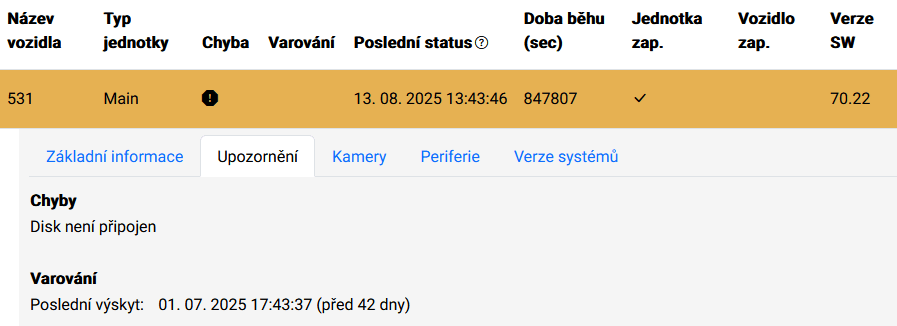
"Notifications" window.
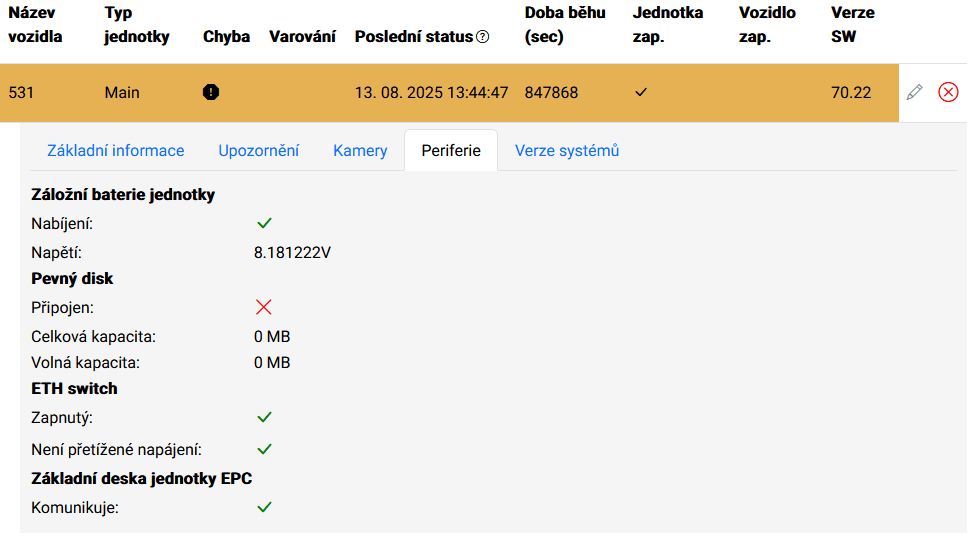
Peripheral status
If other peripherals are connected to the system, their status can also be monitored. These may include:
- Internal backup battery
- Hard drive with records
- Ethernet switches, if they enable communication with the control unit
- Single-bit inputs/outputs (e.g. key status – vehicle ignition, etc.)
- Others depending on the project
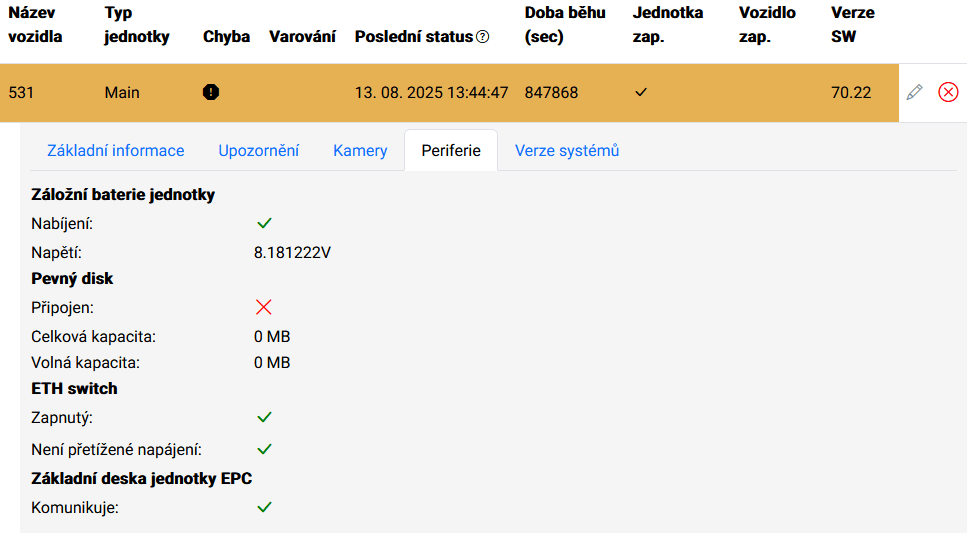
Sample of the "Peripheral status" window.
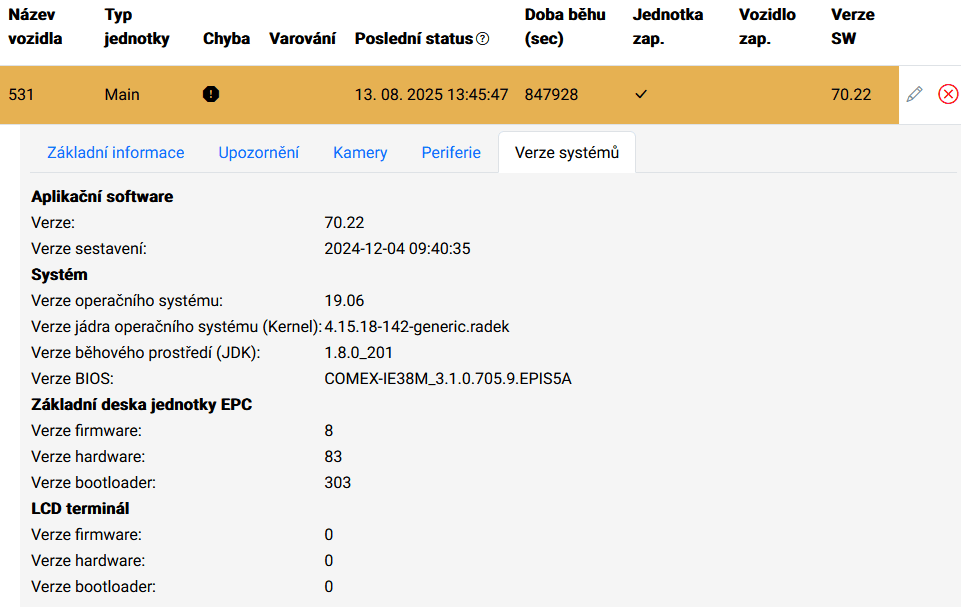
SW and FW versions in the system
The system allows you to display the versions of individual SW, FW and OS in the unit or in connected devices (e.g. LCD terminal, if connected and has a separate OS).
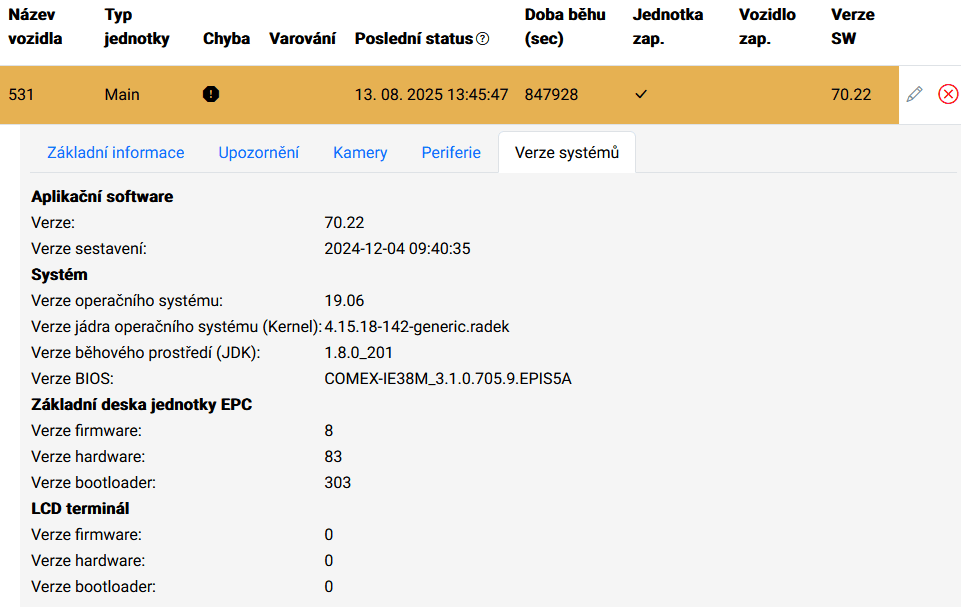
Example of the "System Versions" window.
Cameras
The BOS Camera Module is an extension module of the BOS server system – Back Office System, which enables online communication with thousands of vehicles and their devices. Individual functionalities can be connected to other systems via the BOS API.
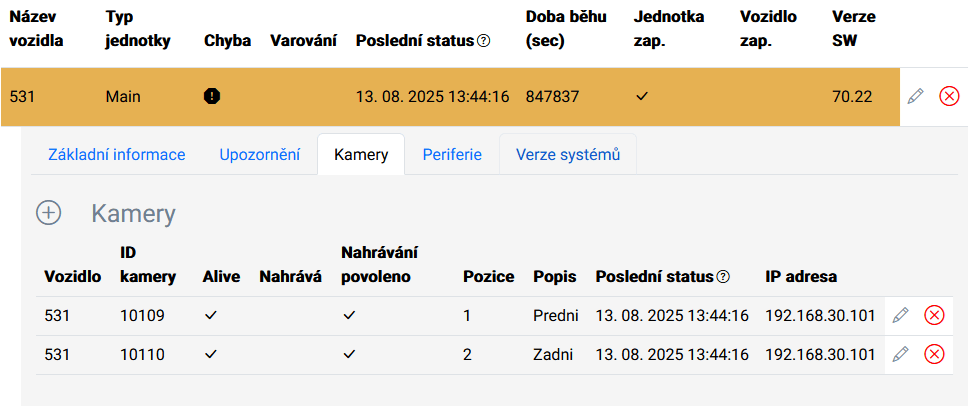
- The system has two levels of camera display:
- Overview – i.e. how many cameras are connected in the vehicle and what their status is. The system allows the user to add a note to the camera (description). "Cameras
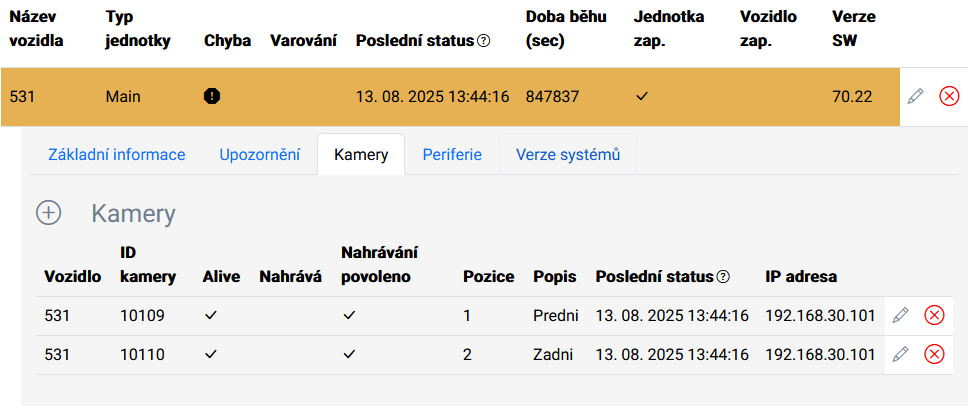 connected to the unit" window
 - Camera status – the camera status can be viewed in more detail (check status) and remote configurations can be made or a video stream can be started.
- Overview – i.e. how many cameras are connected in the vehicle and what their status is. The system allows the user to add a note to the camera (description). "Cameras
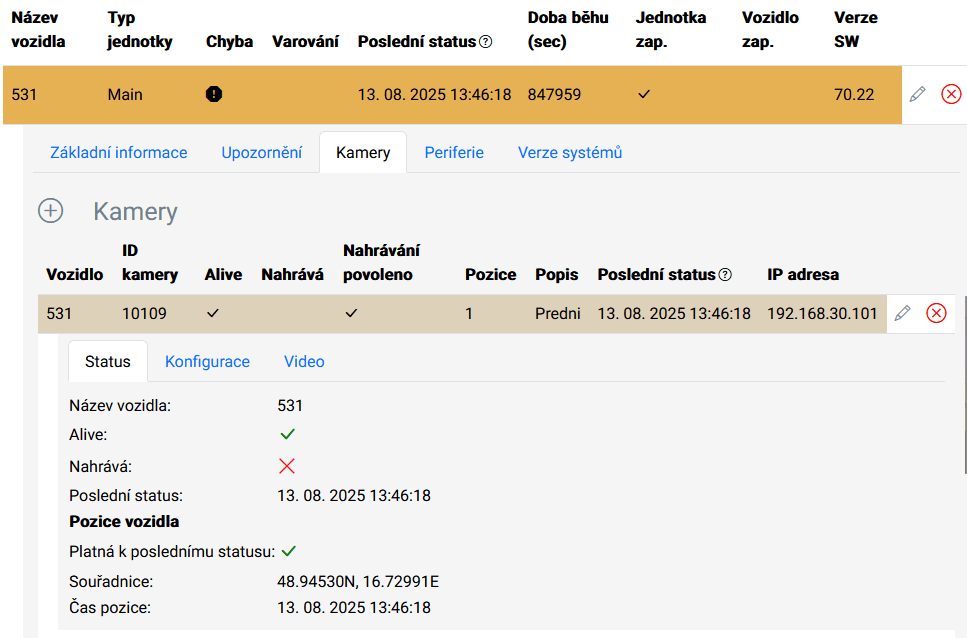
- Camera status
The camera status is displayed in the following window.
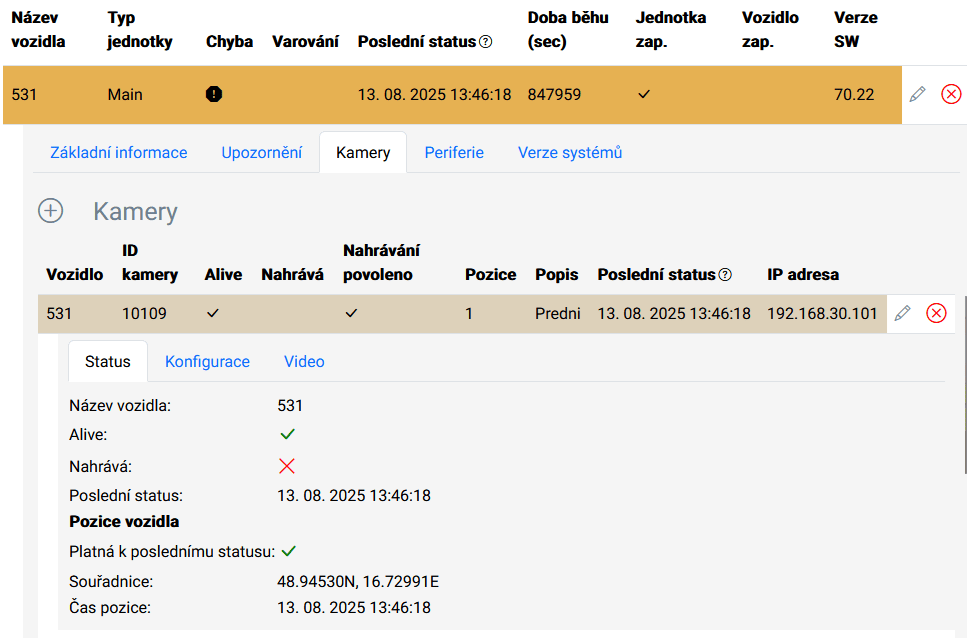 "Camera status" window.
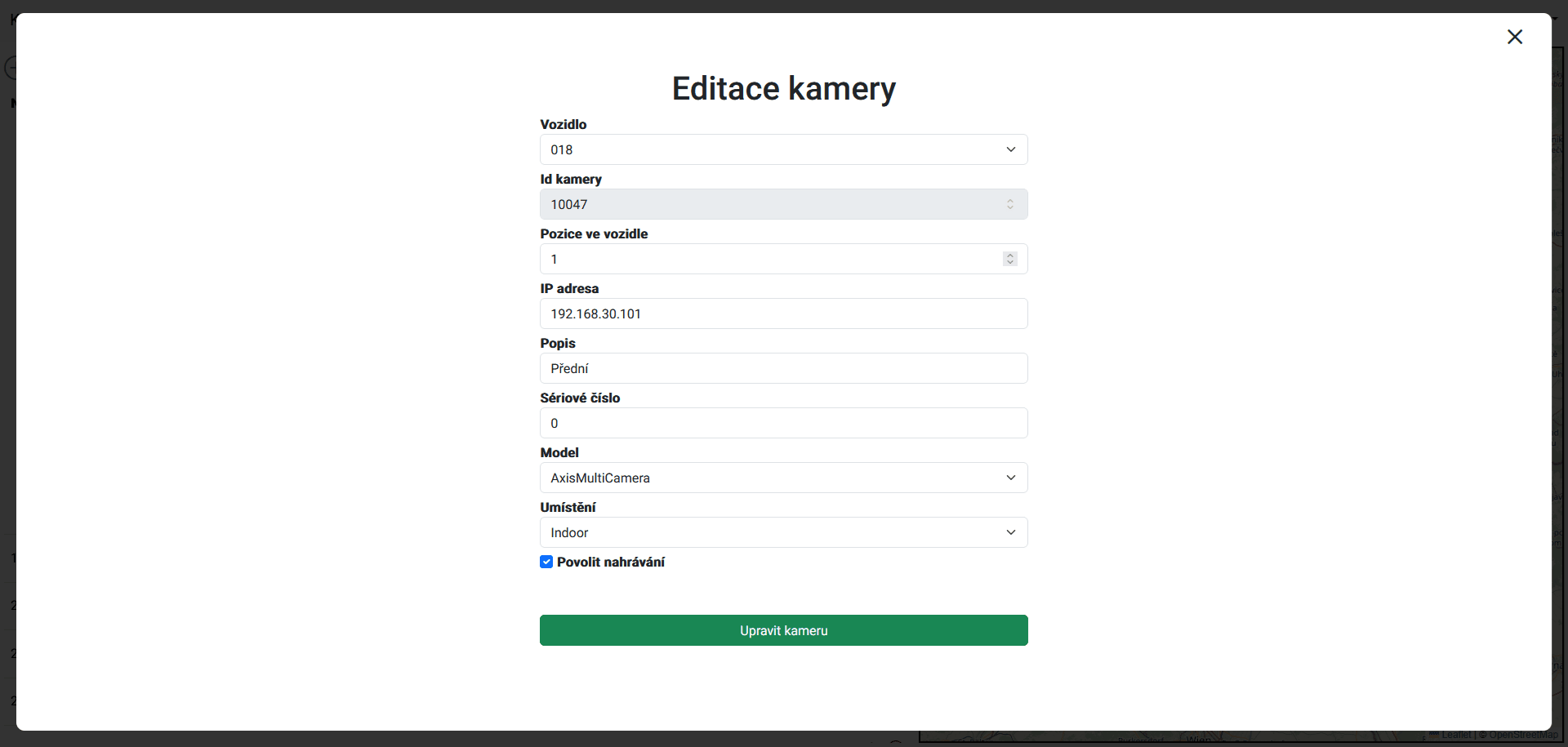
- Camera configuration
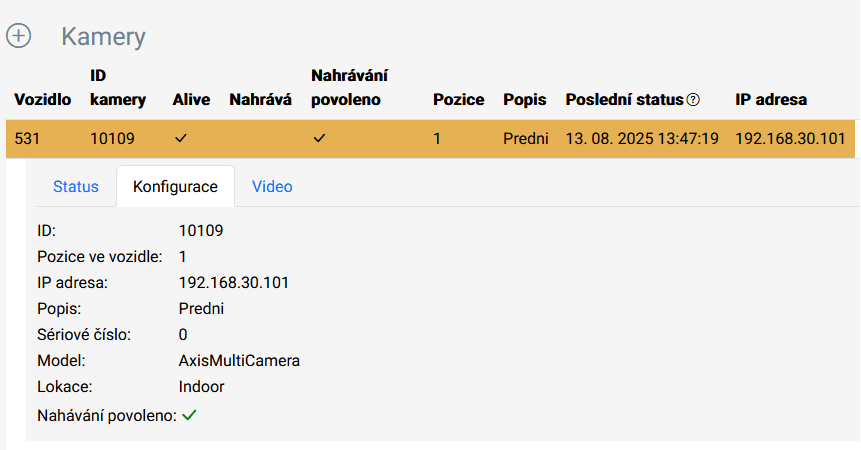
Camera settings – the type of connected camera and the parameters required for communication between the unit and the camera are set. The settings are then automatically transferred to the unit.
The window can be adjusted according to the camera type and required functions.
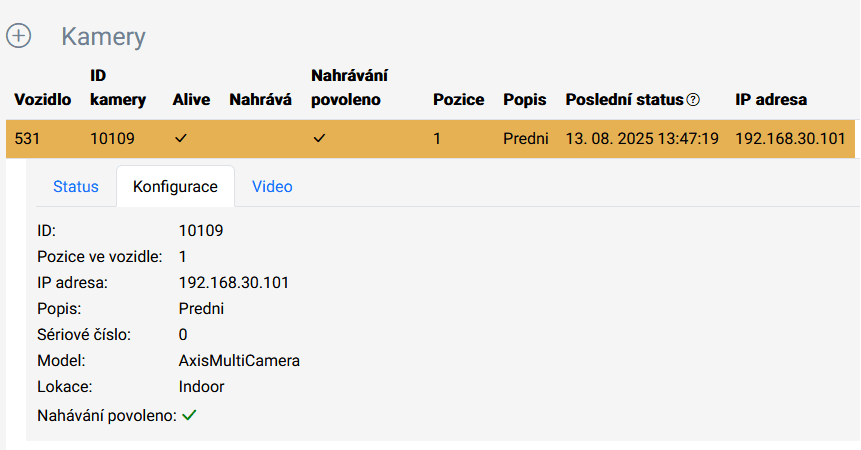
Camera configuration.
Online video stream display
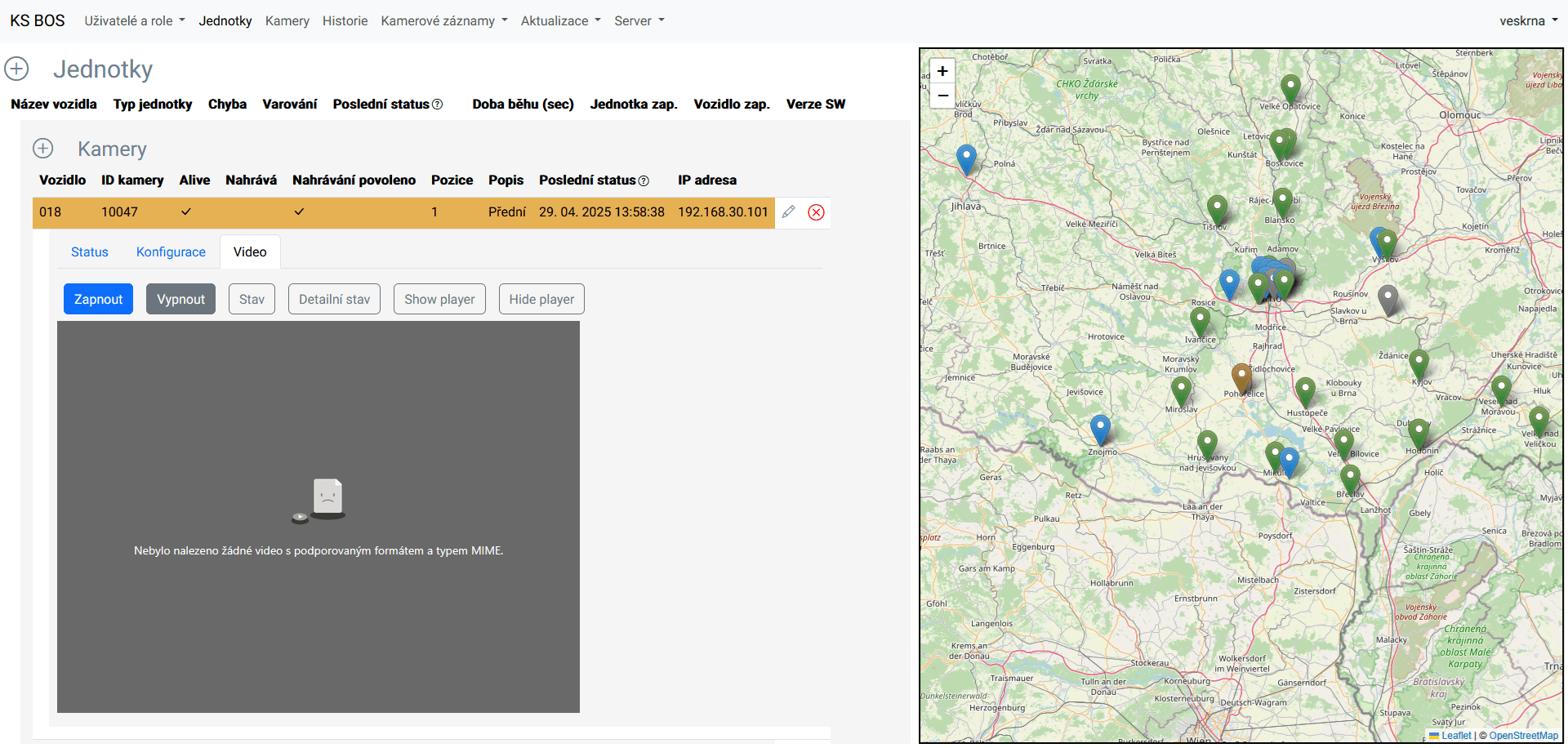
This window allows you to view camera footage online, if the type of connection to the server allows it (not available in the following image due to VPN transfer restrictions).
Video transmission can be turned on, off, etc.
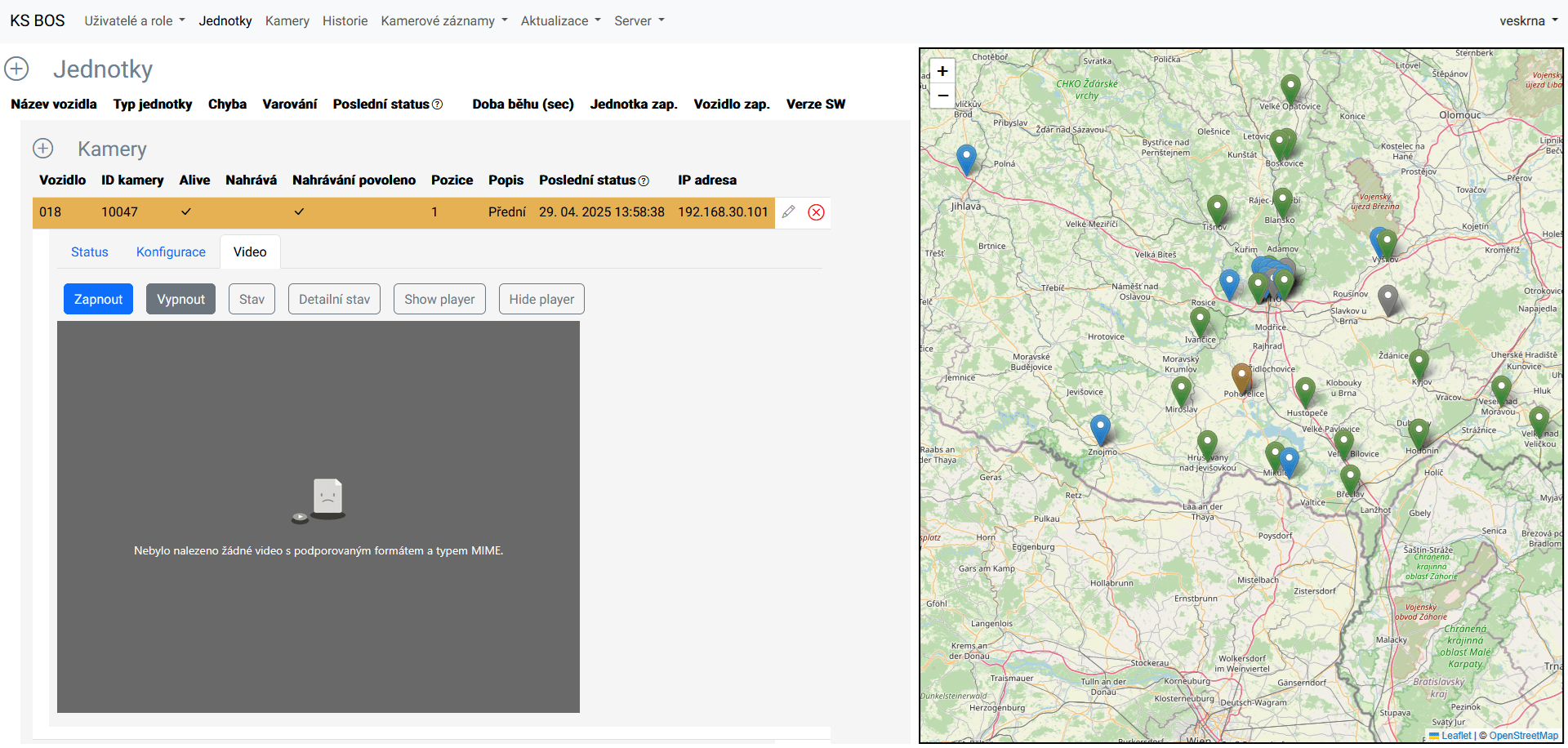
Example of a possible online video display from a vehicle from the selected camera.
The display quality varies depending on the camera type, frame rate and defined resolution.
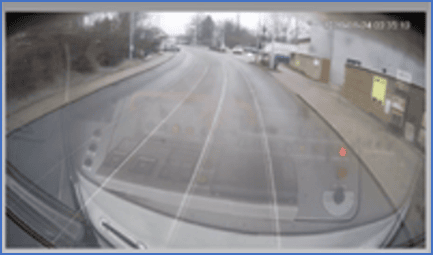
Example of a display from the front camera while driving at standard resolution.
Downloading camera recordings
The download includes:
• display of images from the selected camera – viewing incidents,
• overview of read camera recordings,
• display of vehicles with cameras on the map.
Recording history
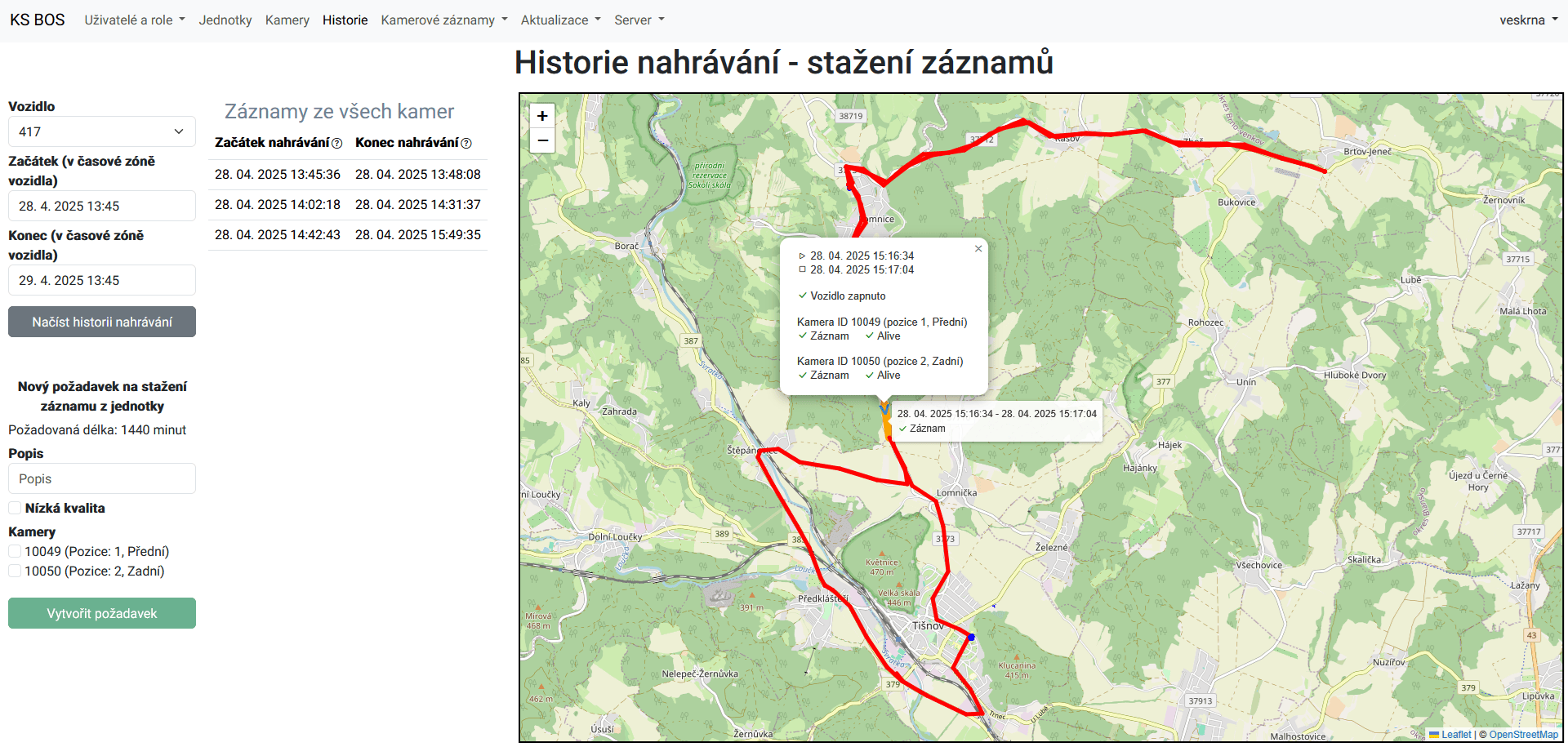
Recording history – For the specified vehicle and time interval, a list of available recordings is displayed – on the map (the vehicle's route is also plotted on the map) and in a table. The specified time interval can be selected from the context menu and only for the area of travel from which the recording needs to be downloaded. This creates a request to download the camera recording from the vehicle unit to the server.
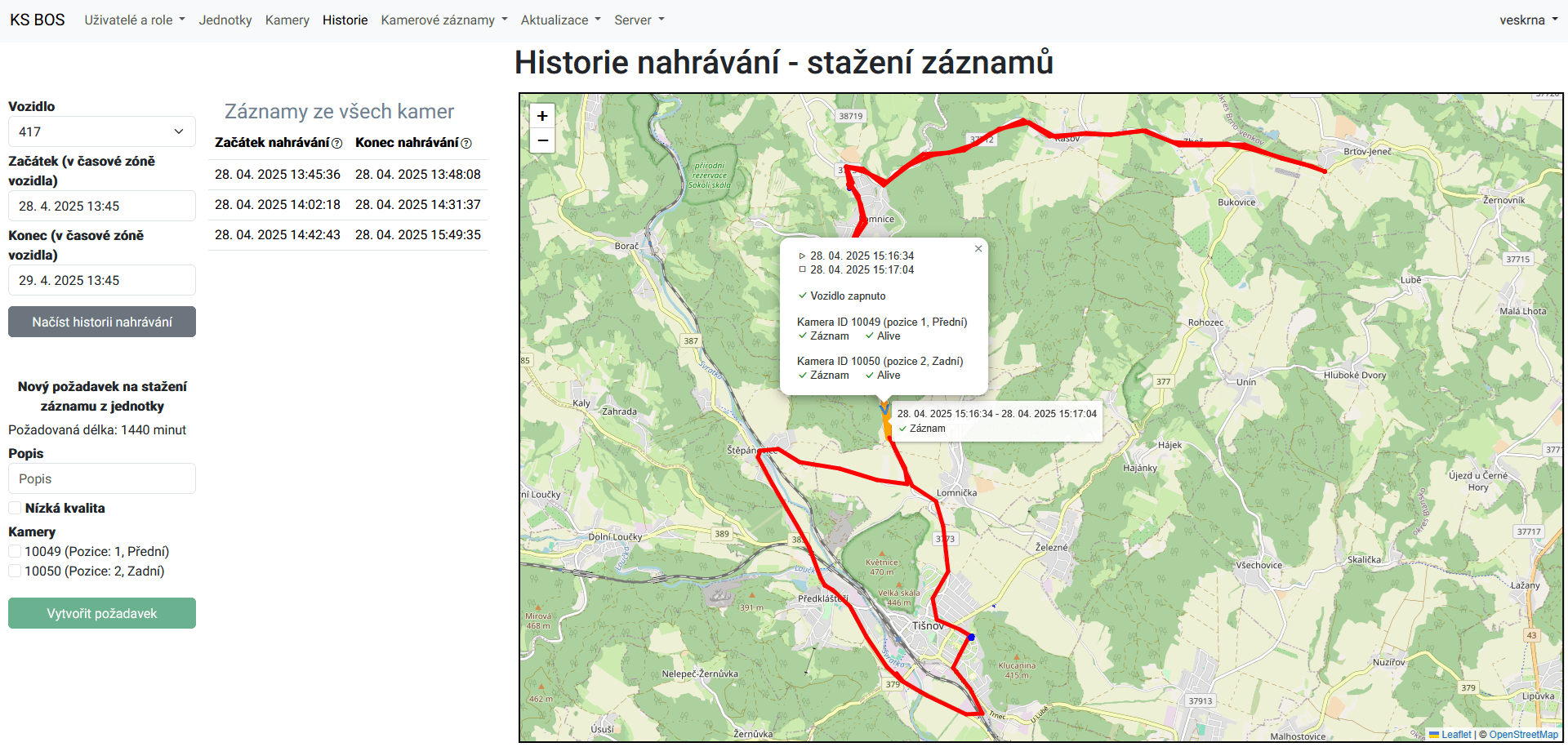
Example of the "Window for selecting the interval for downloading recordings from the vehicle".
List of requests to download recordings
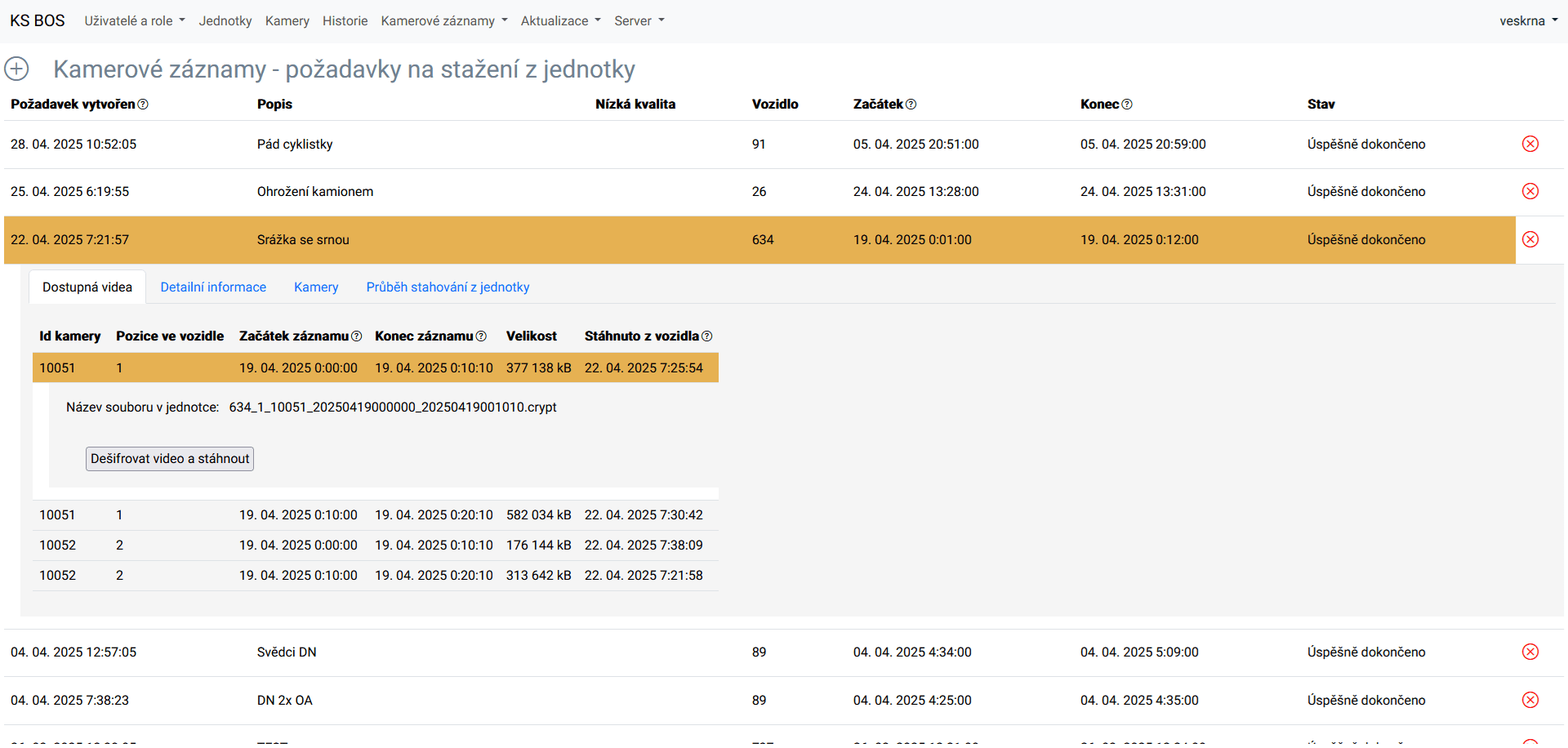
The window displays the download status, any errors and available recordings. The recordings are encrypted throughout the entire transfer. Decryption only takes place when downloaded to an authorised user's computer.
The archive with the stored video is encrypted against unauthorised access with AES (Advanced Encryption Standard – type AES-128 in CBC (Cipher Block Chaining) mode with block padding according to the PKCS#7 standard) or equivalent encryption. (can be modified by agreement).
Access to the option to copy and view videos is password protected.
The recording can be exported with encrypted protection and played back using a special viewer, or it can be exported without encryption, e.g. to law enforcement agencies, government authorities, other authorised applicants, participants in proceedings, etc. When reading records (viewing incidents), it is possible to convert the record to *.avi or *.mp4 format. This is set according to an agreement with the system user.
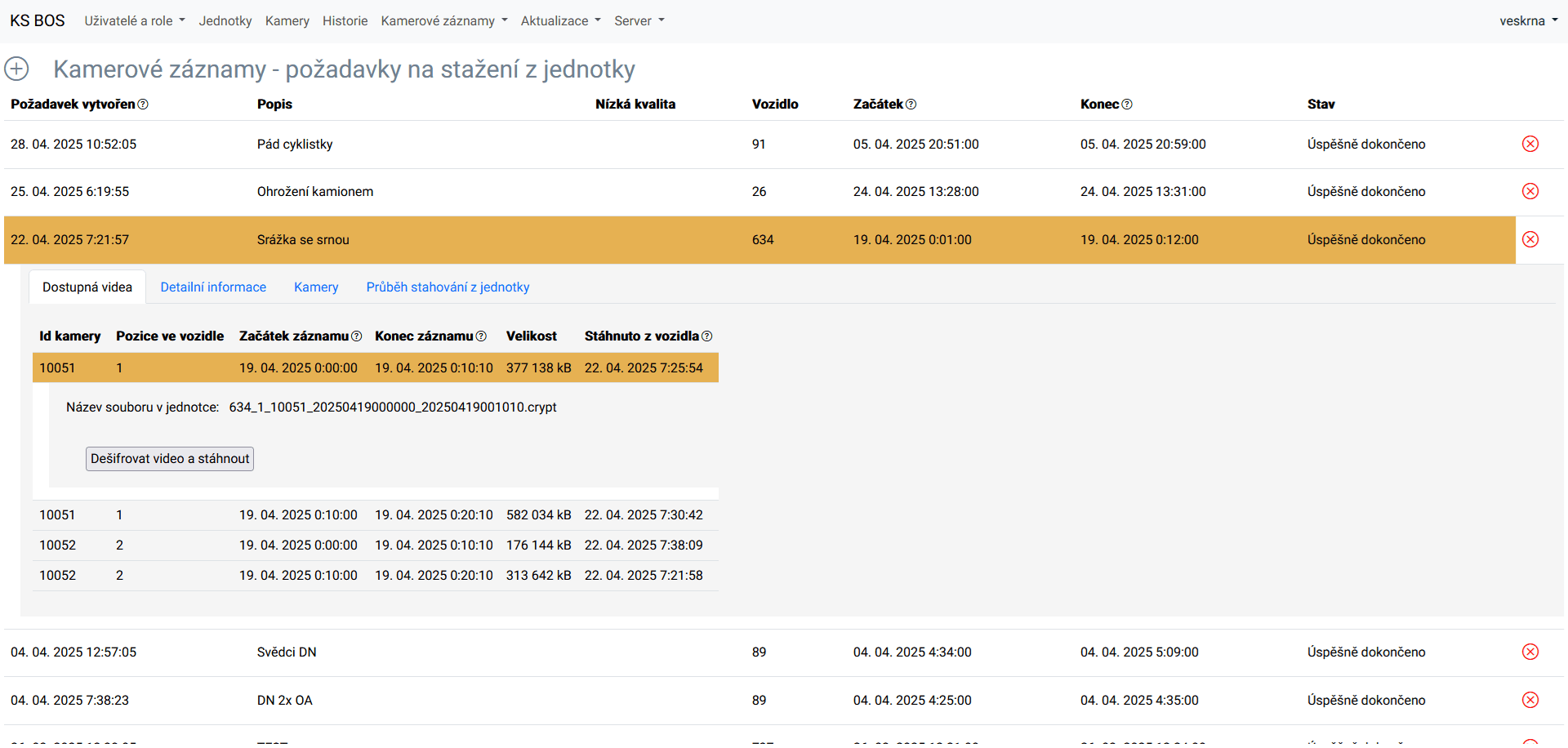
Sample window "Requests for downloading files from the unit".
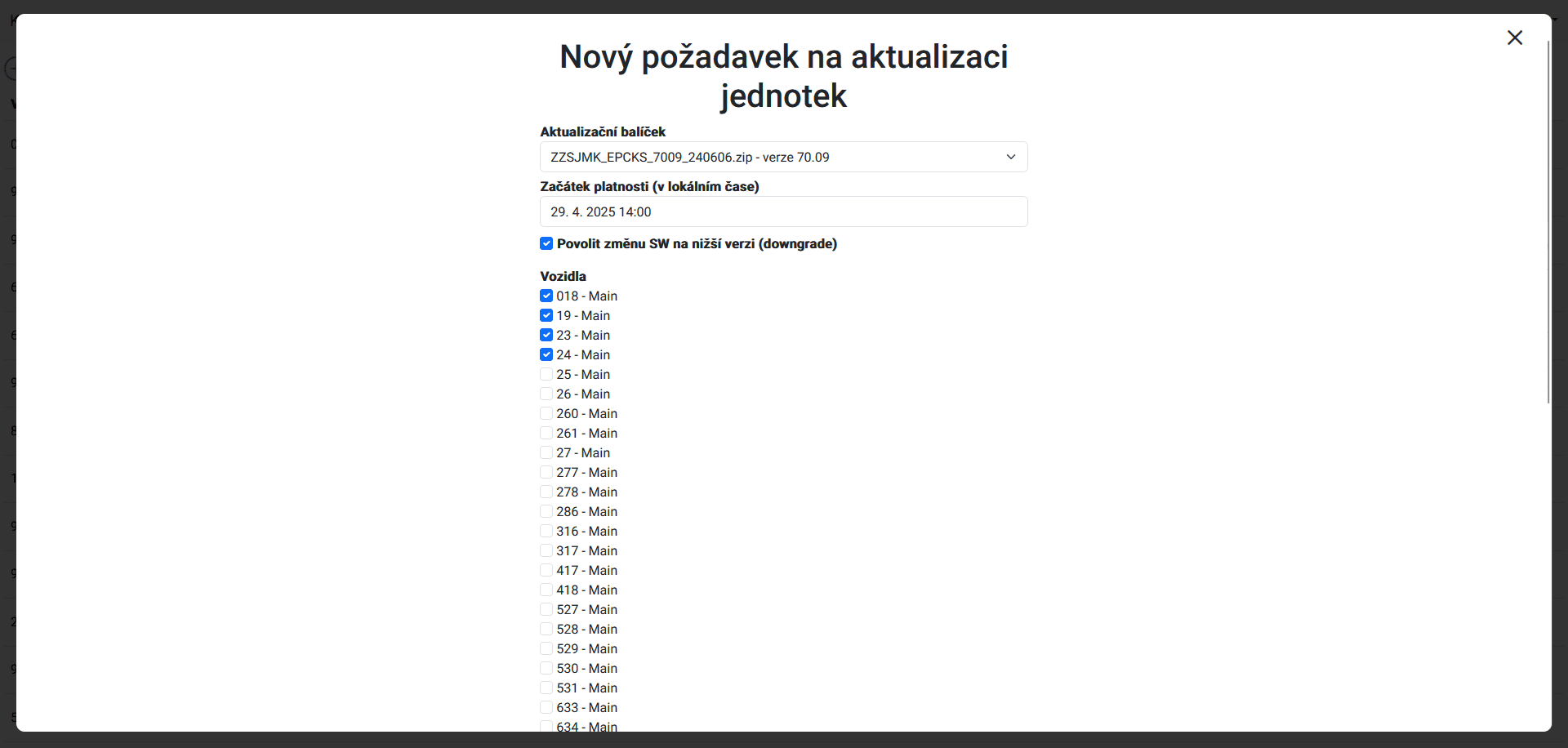
Bulk unit updates
Individual elements of the system in the vehicle can be updated remotely. It is up to the user to decide which elements to include in the update.
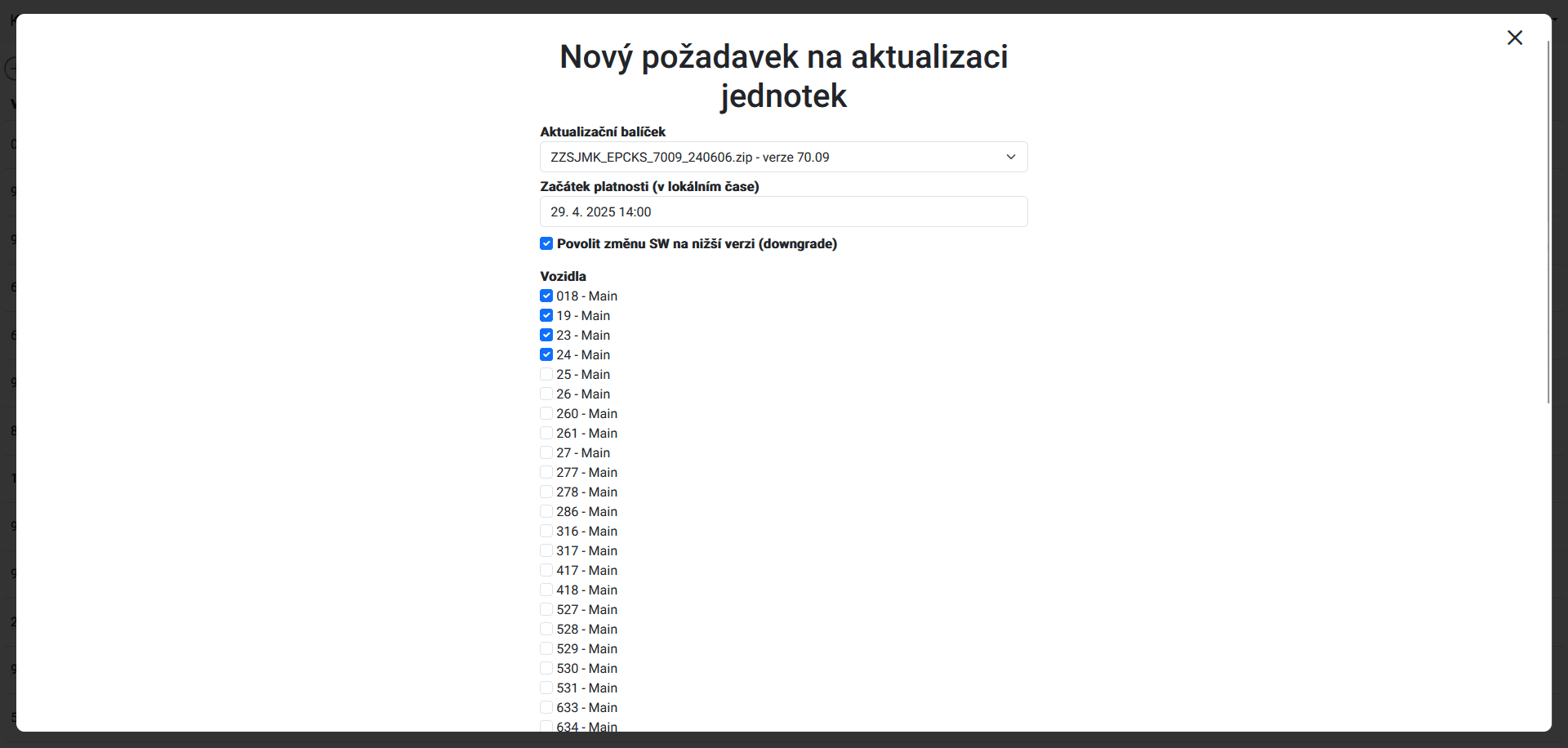
Example of the "Bulk unit firmware updates" window.
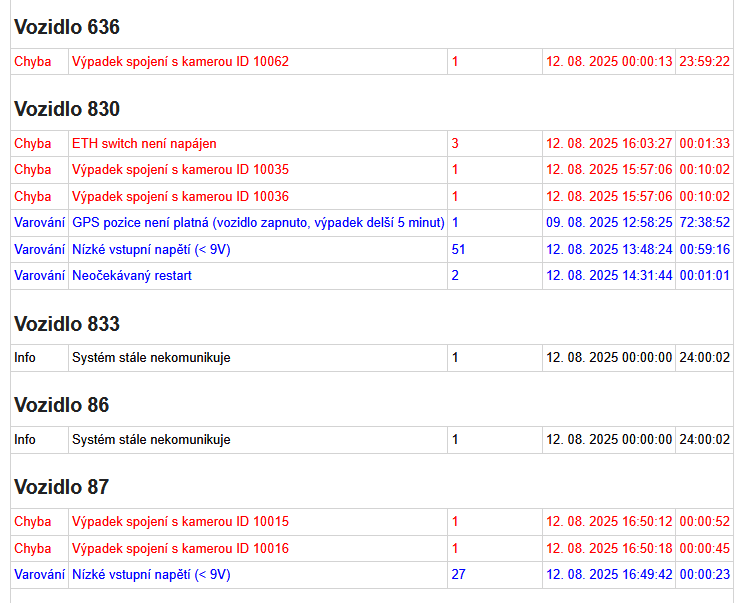
Email error reports
KS BOS allows error and warning reports to be sent to selected addresses. The e-mail error report is sent at regular intervals and contains a list of all errors and warnings that the units have sent since the last report.
The list is configurable and is intended to be checked by the responsible employee in case, for example, a vehicle is out of service for a long period of time and this event is not known to the server, or in case of an unexpected restart caused by a short-term disconnection of the unit in the vehicle during maintenance, etc. Some reports are sent for preventive reasons.
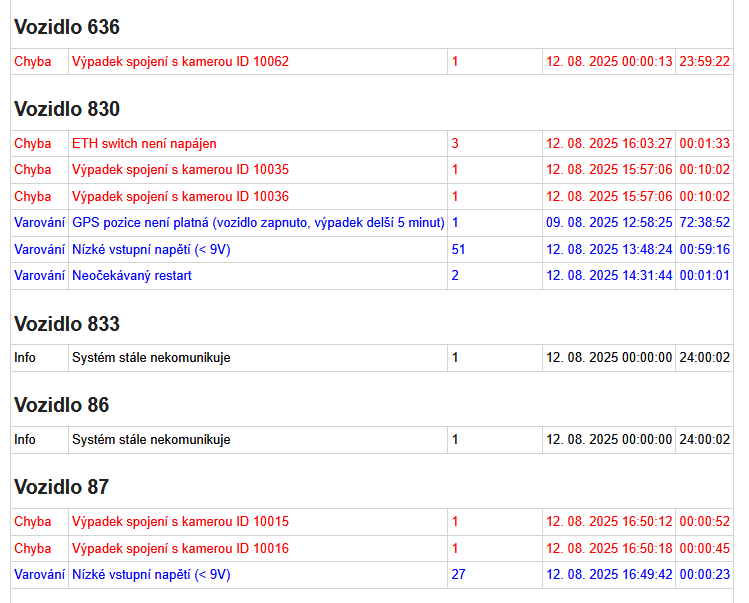
Sample list of e-mail reports.
API interface and communication protocol
These documents are only available upon request under NDA and for system users.